
 Voice
Voice
Amazon Alexa
Control lights by voice, add them to Alexa Routines, and group rooms alongside the rest of your Echo devices.
"Alexa, set the kitchen to warm white."Explore LIFX
Not all smart bulbs are equal. Here's what sets LIFX apart, from the LEDs inside to the way it connects.
Richer, truer color
Straight to Wi-Fi, set up in minutes
Brighter output that holds true
Alexa, Siri, Google & SmartThings
LIFX
Typical smart bulb
Scenes, schedules and automations that do the work for you — pick a moment and the light follows.
Light that follows the day
Gentle sunrise alarm
High-energy scenes
A look you want again
A sequence of actions
A time based action

Hey Alexa, dim the lights.

Hey Google, set the lights to 100%.

Hey Siri, set the light to "Chill Out"

Pair with motion sensors and other devices.

Local control for the tech forward

Build visual flows for your smart home

If this then that recipe builder
Up and running in about five minutes. No hub, no wiring, no fuss.
Guides, builds and inspiration from the LIFX community and our own team.
See what the LIFX community is building, and share your own setup.
Light that follows the day
Gentle sunrise alarm
High-energy scenes
A look you want again
A sequence of actions
A time based action
Hey Alexa, dim the lights.
Hey Google, set the lights to 100%.
Hey Siri, set the light to "Chill Out"
Pair with motion sensors and other devices.
Local control for the tech forward
Build visual flows for your smart home
If this then that recipe builder
Your LIFX lights connect to Alexa, Google Home, Apple Home, SmartThings and more, so voice, routines and automations just work, right out of the box.
However you already control your home, LIFX fits in. Here's what you can do on each, and how to connect it.
Voice
Control lights by voice, add them to Alexa Routines, and group rooms alongside the rest of your Echo devices.
"Alexa, set the kitchen to warm white." Voice
Voice
Ask the Assistant to dim, brighten or recolor any room, and trigger lights inside your Google Home routines.
"Hey Google, dim the bedroom to 20%." Home app
Add lights to the Home app, build scenes and automations, and control everything hands-free with Siri.
"Hey Siri, set the scene to Relax." Automation
Let motion sensors, doors and schedules drive your lighting, and run whole-home scenes from one dashboard.
Motion detected → hallway lights on
Music Sync
Make your LIFX lights dance to whatever's playing, with color and brightness pulsing in time with the music.
Now playing → lights pulse to the beat Local · Advanced
The tinkerer's favorite. Local control, deep automations and fully custom dashboards, all self-hosted.
Sunset → fade porch to 2700K Automation
Build visual Flows that link LIFX with thousands of other smart devices, no matter the brand or protocol.
If TV on → living room to Movie Applets
Connect lights to almost anything with Applets: weather, calendars, doorbells, fitness apps and more.
Calendar event starts → focus light Matter enabled
Your LIFX light uses Matter, a smart home standard that lets one device work with multiple platforms at the same time, so there's no need to choose just one.
Since your light is already set up in the LIFX app, sharing it to another ecosystem takes just seconds. You're not moving it or disconnecting it from anywhere else. You're simply giving that platform its own secure connection to the bulb, alongside any other apps you're already using, like Apple Home or Amazon Alexa.
Here's what that looks like using Google Home as an example.
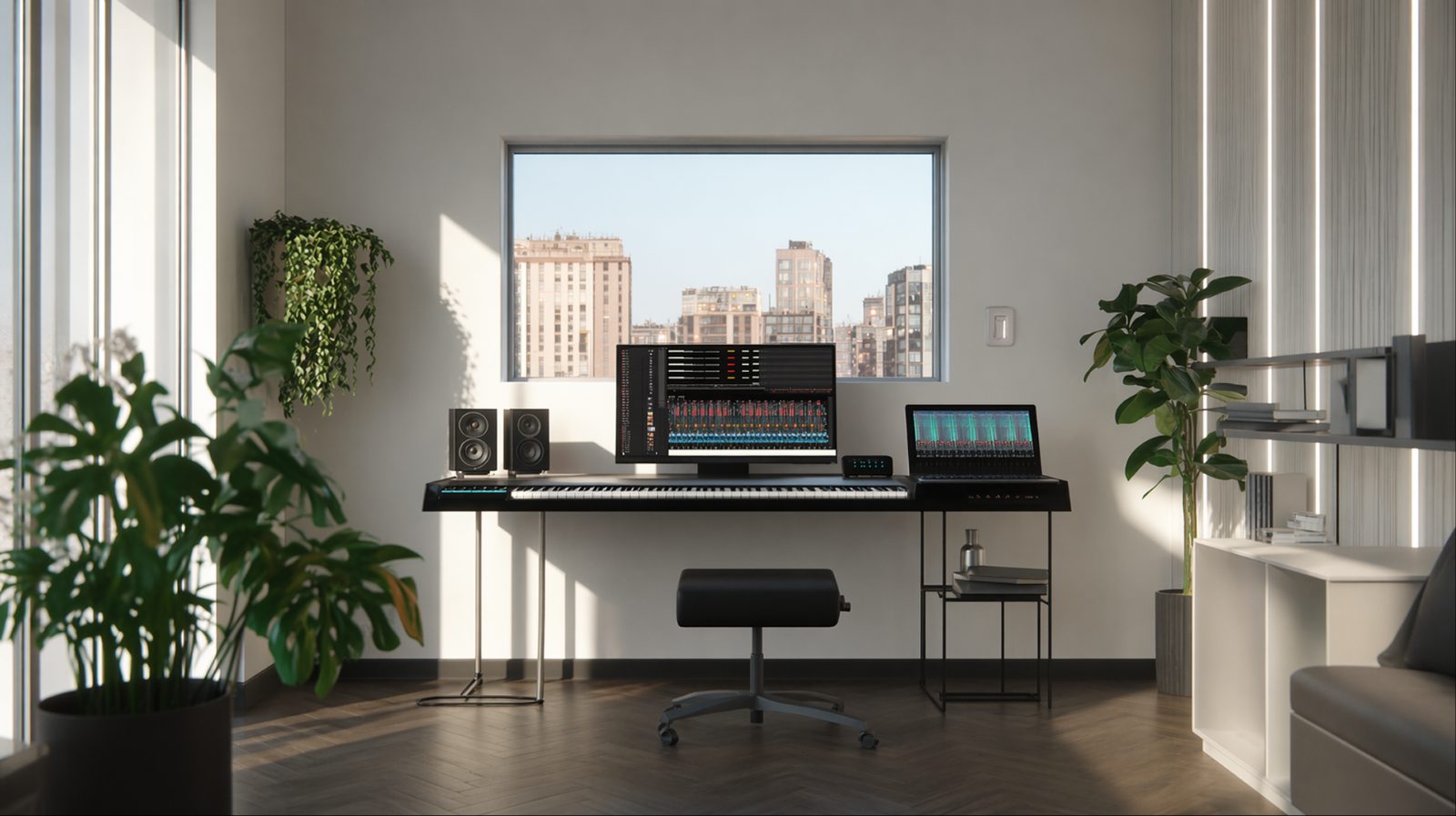
Both apps, at once. Control your light from the Google Home app and keep using the LIFX app.
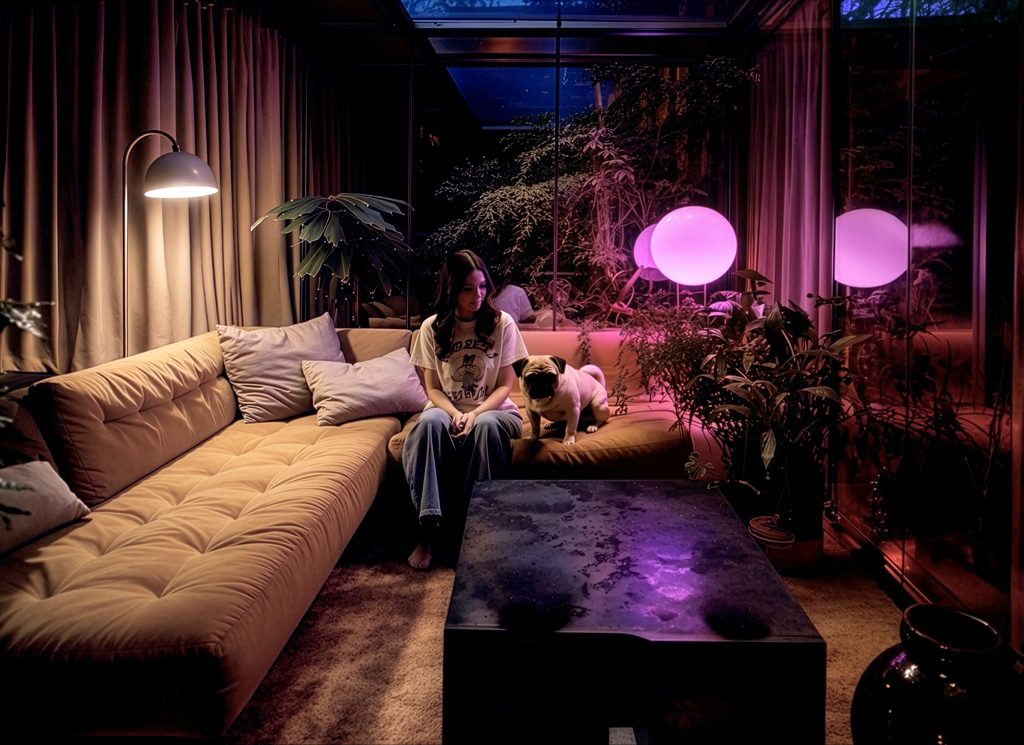
Mix and match. Voice with “Hey Google,” schedules in LIFX, automations in a third app, all on the same bulb.
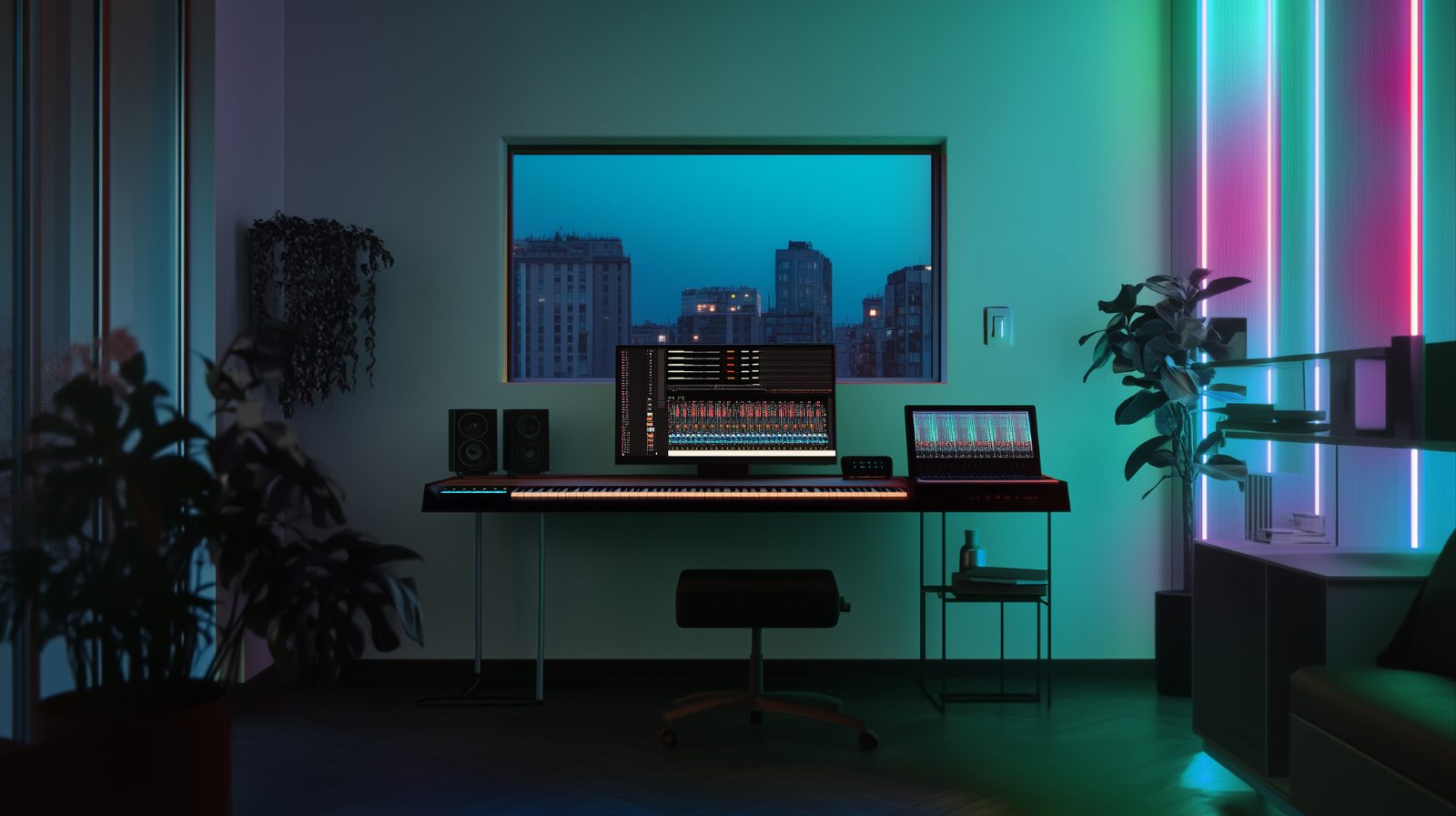
No cloud round-trips. Google Home talks to your light directly over your home network, so it stays fast.
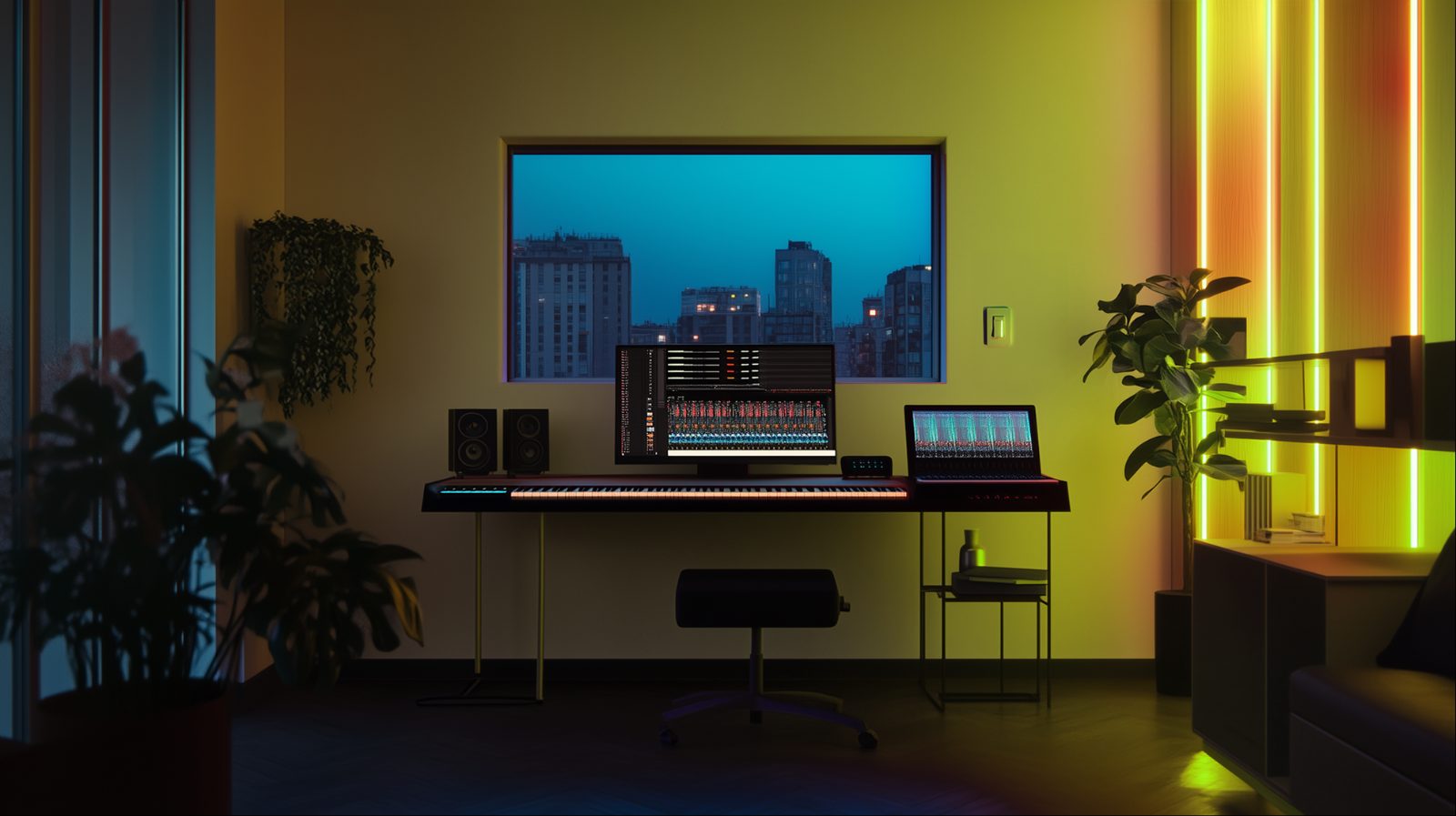
Nothing breaks. Remove it from one app and it keeps working perfectly in the others.
Think of it like adding a second TV to your Netflix account. Both work independently, and using one doesn't log the other one out.
Control your LIFX lights with Amazon Alexa. First pick how you'd like to connect.
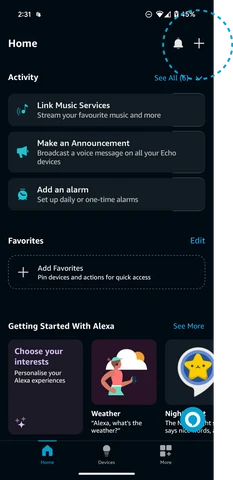
From the Alexa app home screen, tap + in the top-right, then choose Add Device.
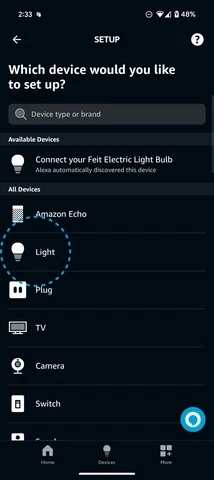
Select Light from the device list.
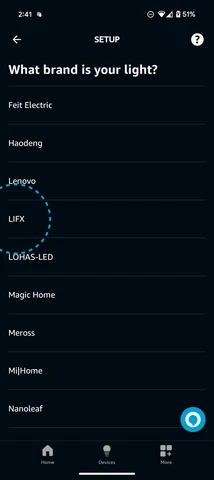
Scroll the brand list and tap LIFX.
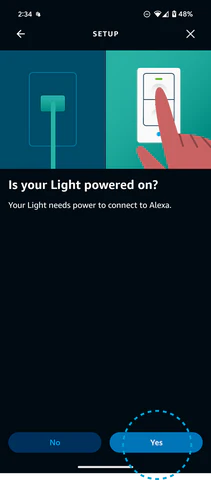
Your light needs power to connect. Tap Yes.
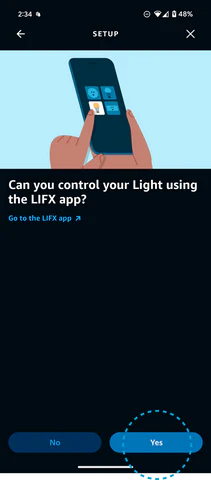
If your lights already work in the LIFX app, tap Yes.
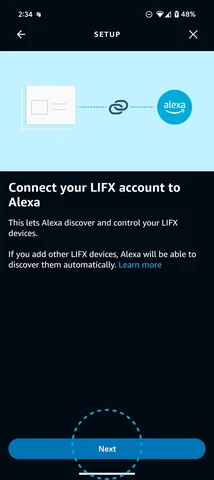
This lets Alexa discover and control your LIFX devices. Tap Next.
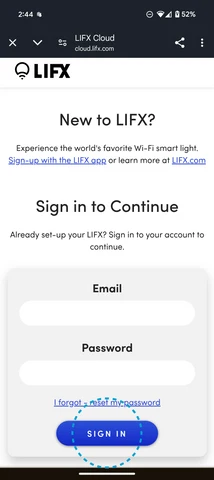
Use the same email and password you use for the LIFX app, then tap Sign in.
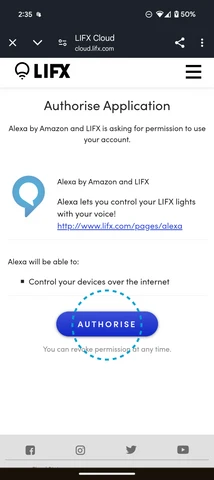
Give Alexa permission to control your lights. Tap Authorise. You can revoke this any time.

Wait a moment while Alexa links your account. Don't leave the page.
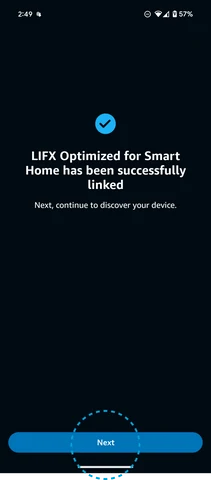
LIFX is now connected. Tap Next to discover your devices.
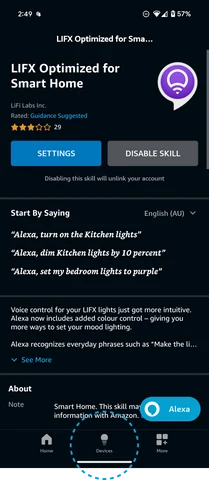
Alexa confirms the LIFX Skill is enabled. Tap Devices to see your lights.
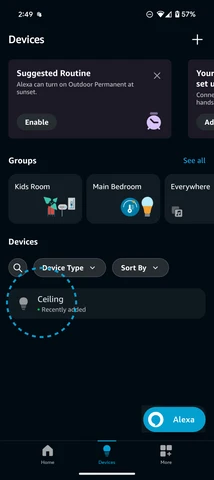
Your LIFX lights appear under Devices. Tap one to open its controls.
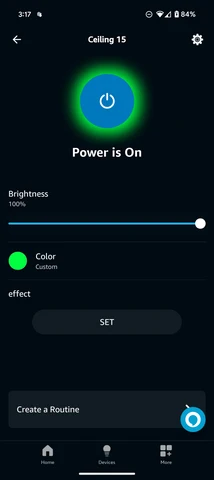
Adjust brightness, color and FX like Flame or Morph where firmware supports it, or just use your voice.
Follow these steps in the Amazon Alexa app
Try these voice commands
Any LIFX Scenes you've made in the app appear at the bottom of the Devices screen, so you can trigger them by voice too, e.g. "Alexa, turn on movie night scene".
What this means for you
Control your LIFX lights with Google Home. First pick how you'd like to connect.
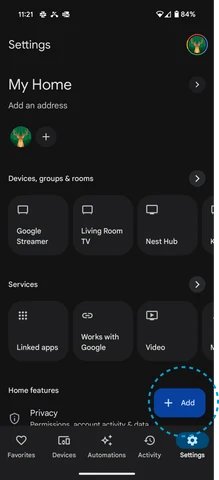
From the Google Home app, tap the + Add button.
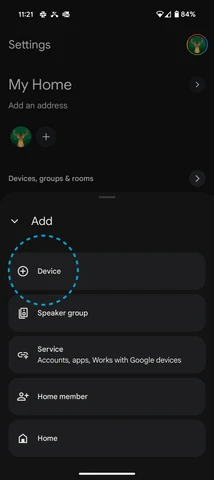
Select Device from the Add list.
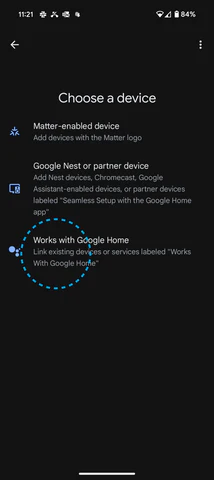
Tap Works with Google Home to link an existing service.
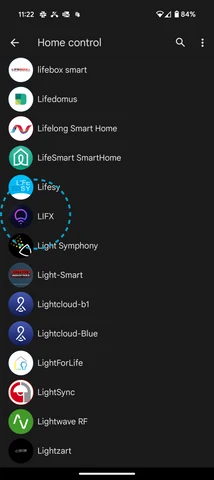
Search or scroll the list and tap LIFX.
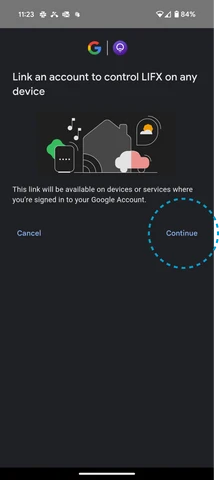
Tap Continue, then sign in with the email and password you use for the LIFX app.
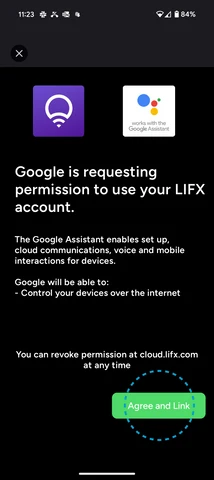
Give Google permission to control your lights. Tap Agree and Link. You can revoke this any time at cloud.lifx.com.
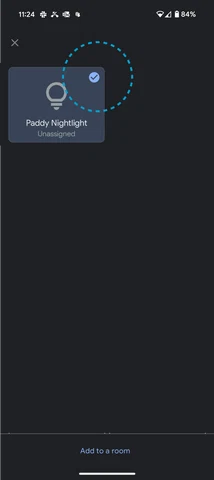
Choose the LIFX light(s) you want to add, then tap Add to a room.
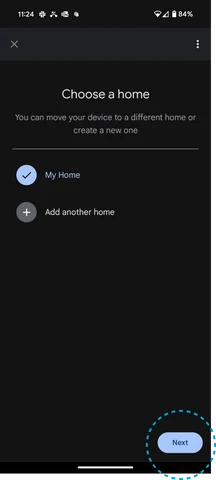
Pick which home to add the lights to, then tap Next. (Not populated from the LIFX app.)
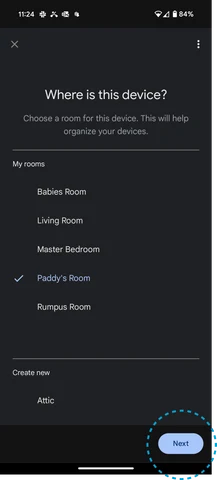
Pick the room for each light, then tap Next. (Not populated from the LIFX app.)
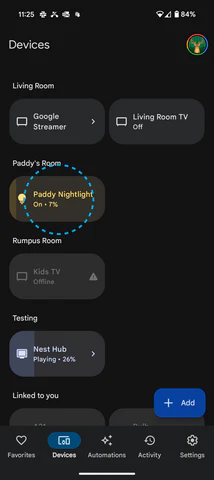
Tap to toggle power, slide across to dim, and long-press for more controls.

Adjust color, white temperature and brightness right from this screen, or just use your voice.
Follow these steps in the Google Home app
Try these voice commands
What this means for you
Control your LIFX lights with Apple Home and Siri. First pick how you'd like to connect.
Follow these steps in the LIFX app
What this means for you
Music Sync makes your LIFX lights change color and pulse in time with whatever's playing on your phone.
Before you start, make sure your LIFX lights are already connected to the SmartThings app. Music Sync is only available on Samsung Galaxy devices.
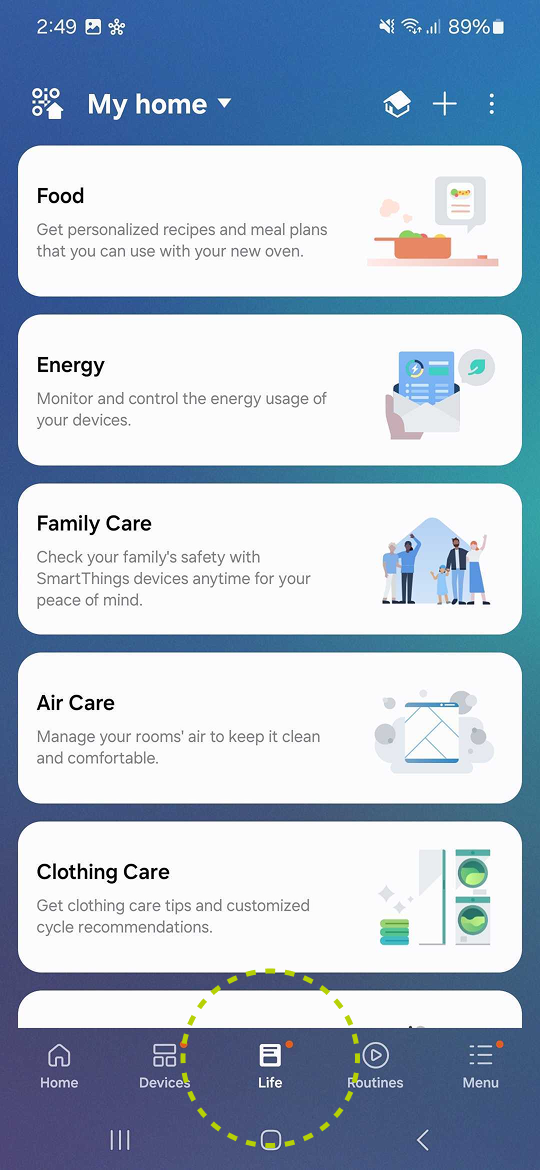
From the Samsung SmartThings app, tap the Life icon in the footer menu.
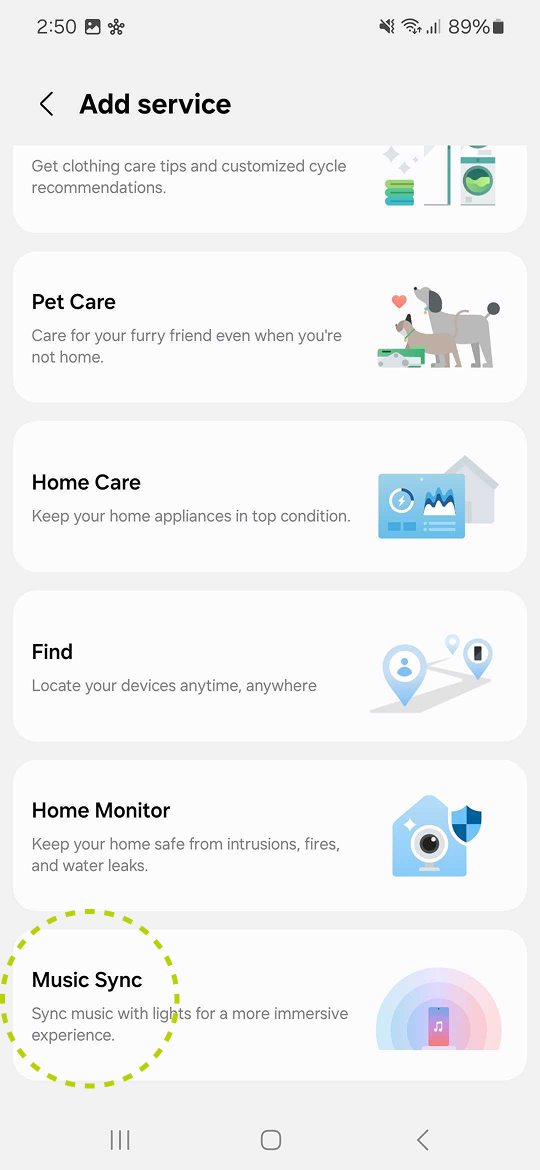
Scroll down to Music Sync.
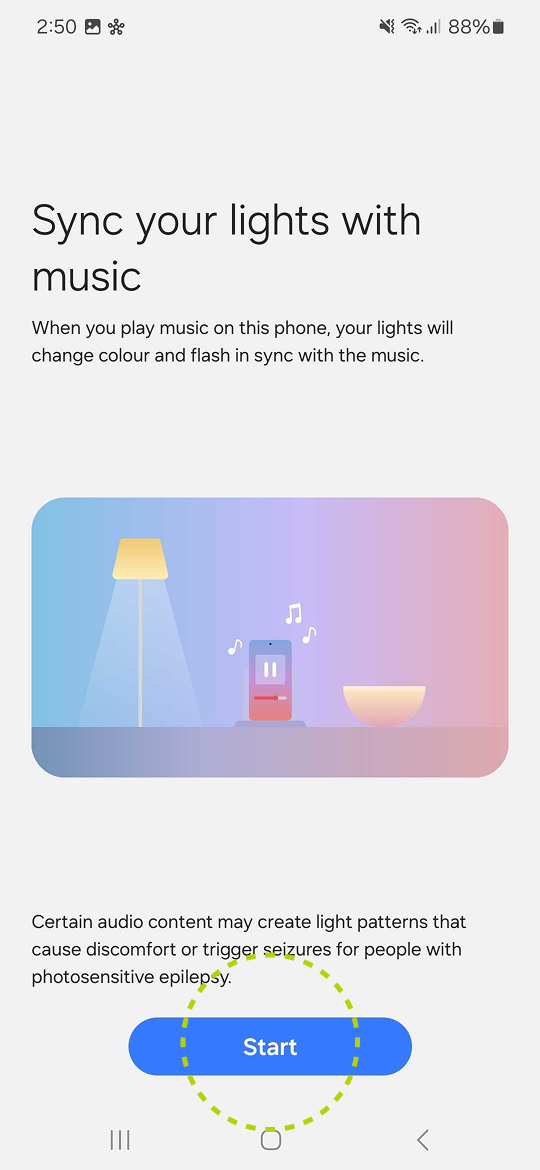
Tap Start.
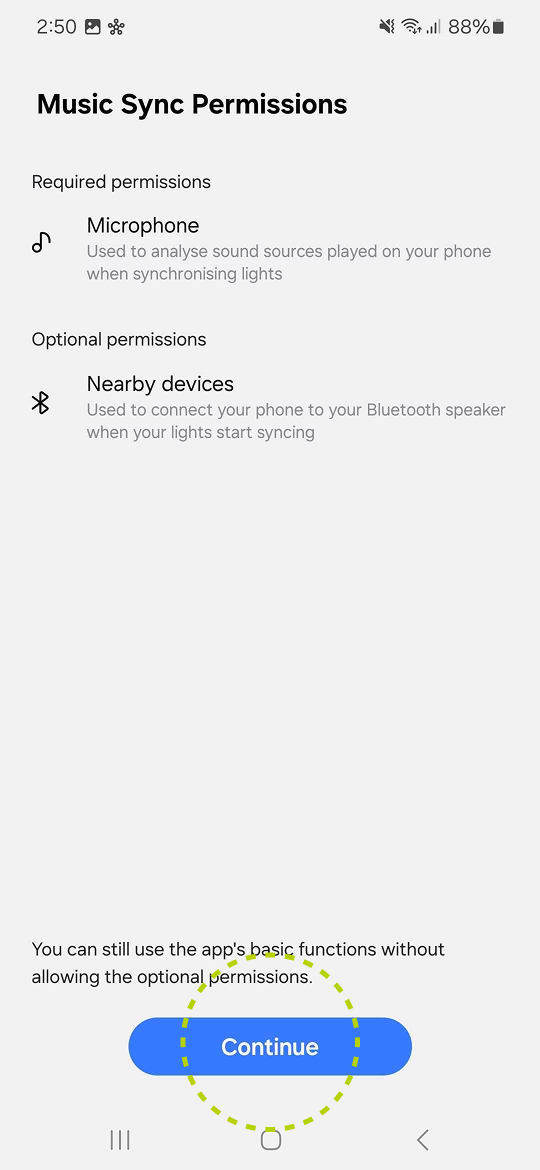
Allow the required permissions by tapping Continue.
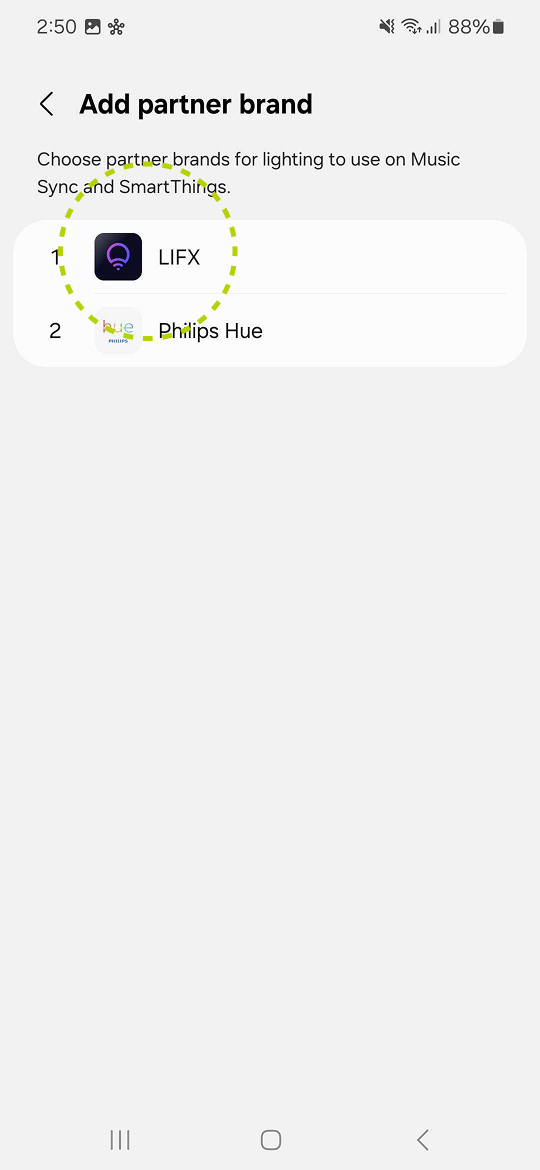
Tap LIFX from the list of partner brands.
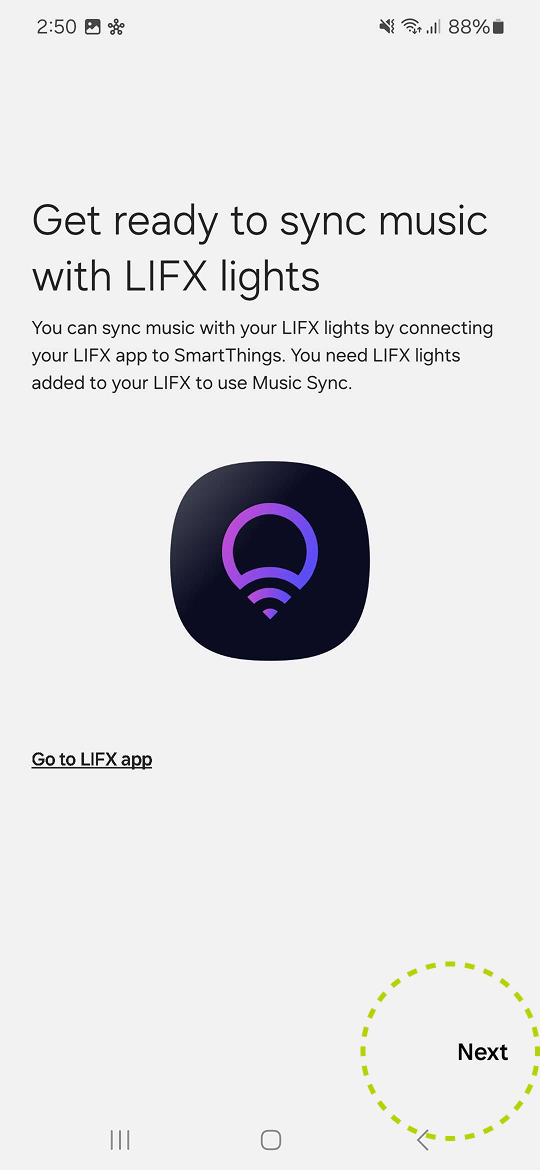
Tap Next.
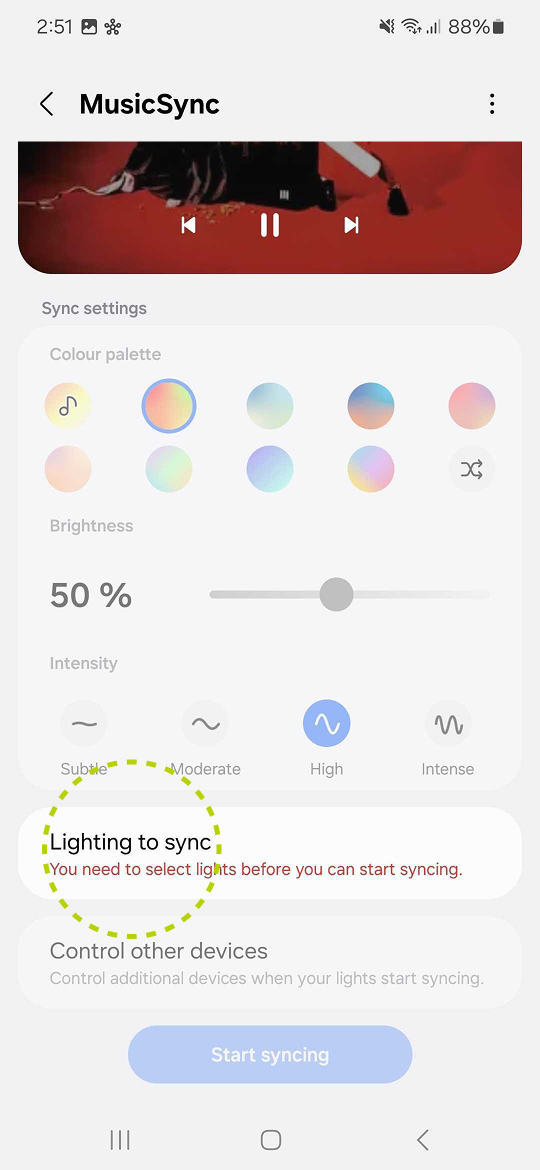
Scroll down and tap Lighting to sync to choose the lights you want to sync.
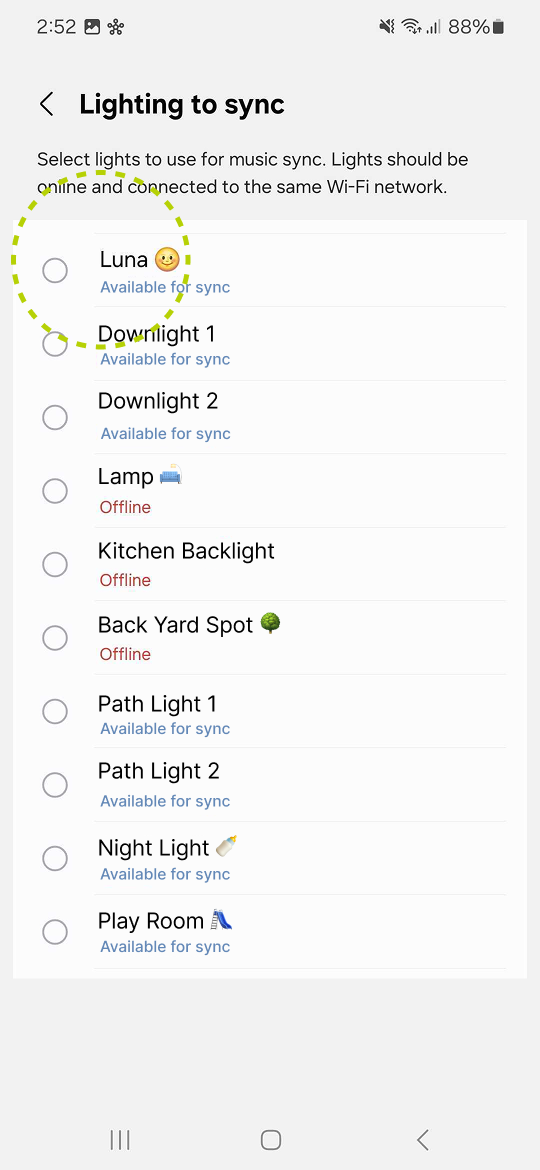
Check the lights you want to sync. Only accessible lights show as Available for sync. When done, press the back arrow to return to the Music Sync screen.
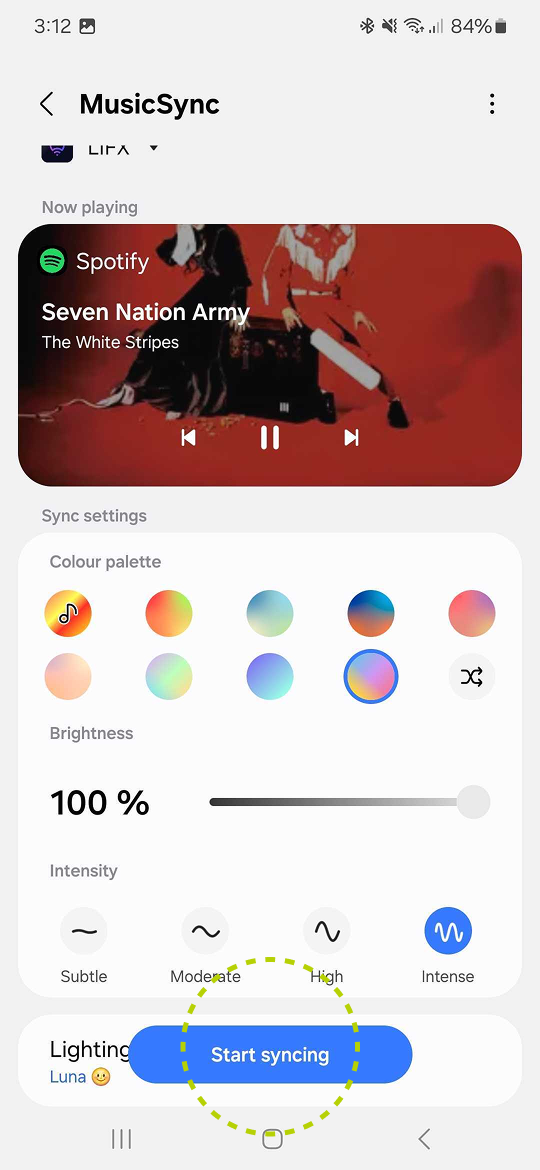
With your music playing, press Start syncing.
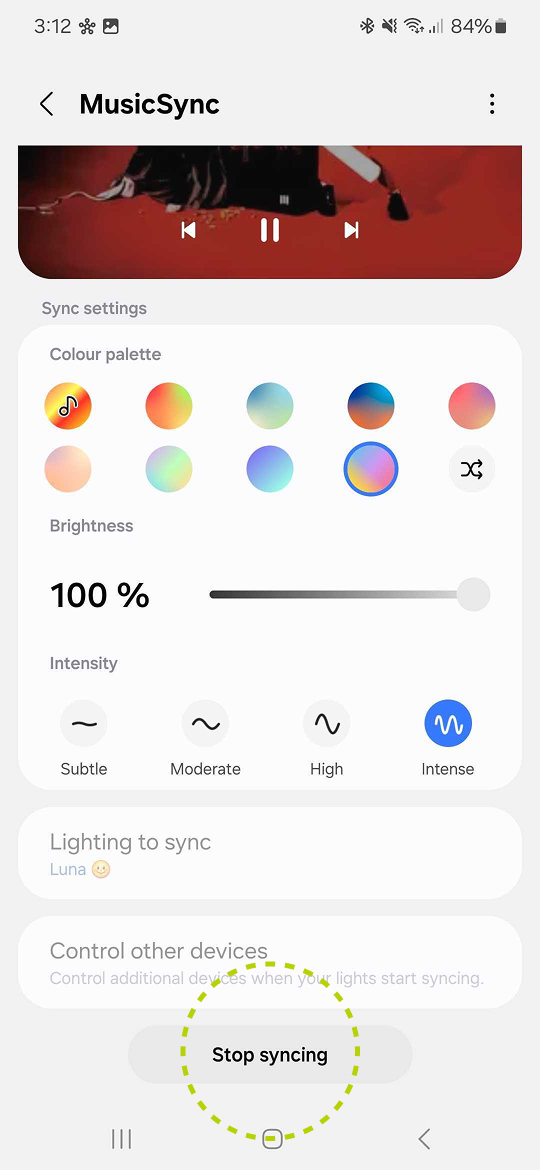
Alternate between color palettes and intensity levels to suit the mood. Stop anytime with Stop syncing.
Follow these steps in the Samsung SmartThings app
LIFX lights connect to SmartThings so you can control them from the SmartThings app. First pick how you'd like to connect.
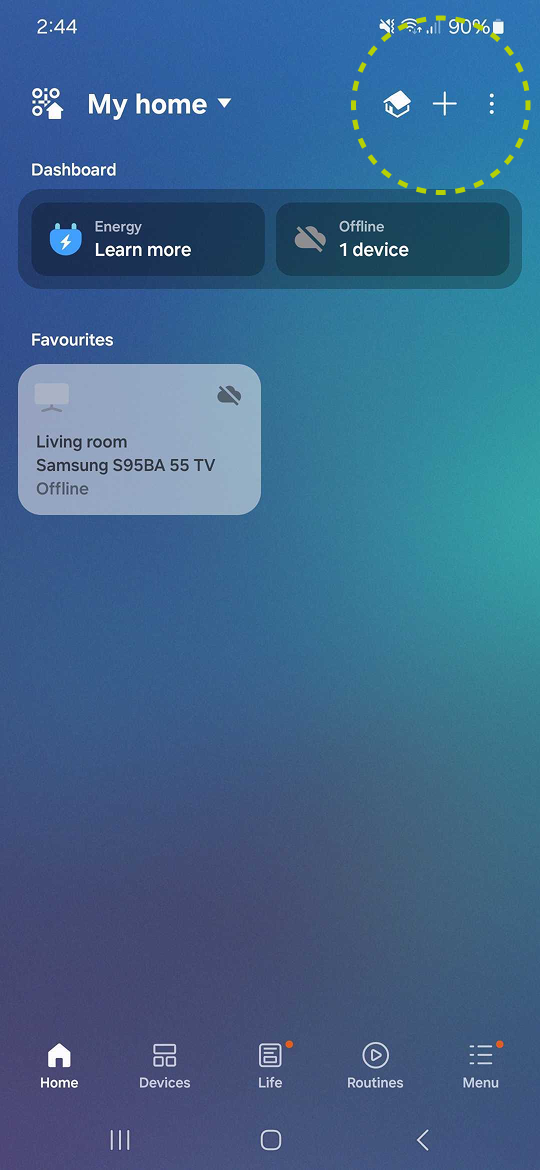
From the SmartThings dashboard, tap + in the top-right.
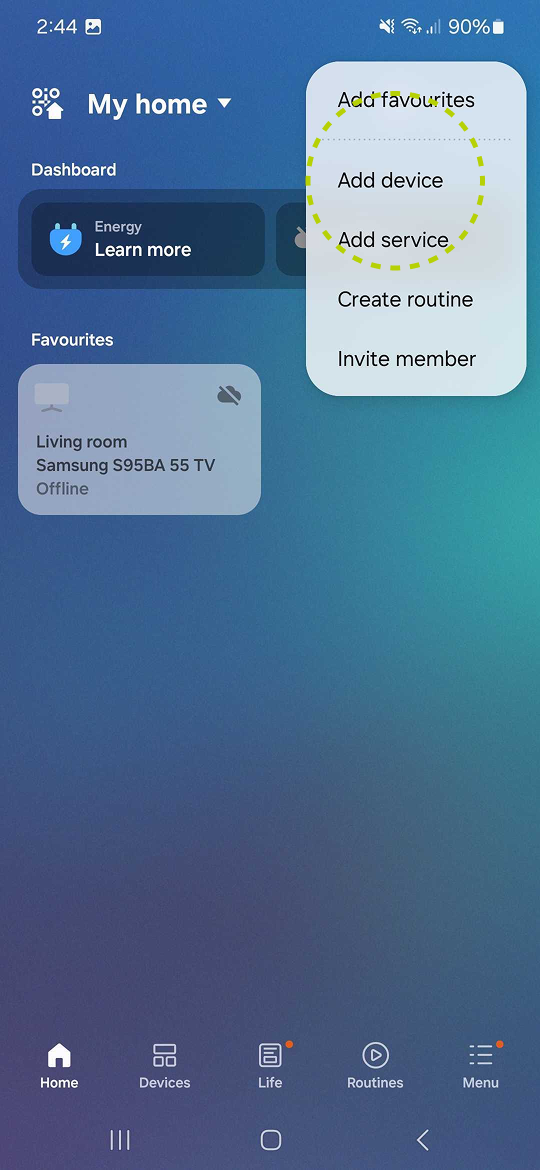
Choose Add device from the menu.
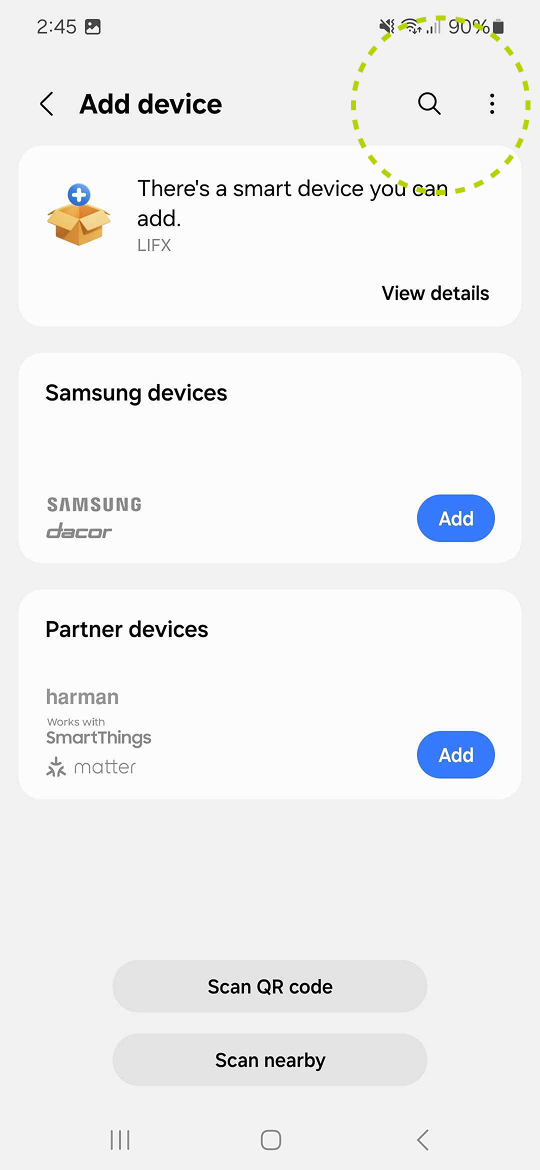
Tap the magnifying glass to search.
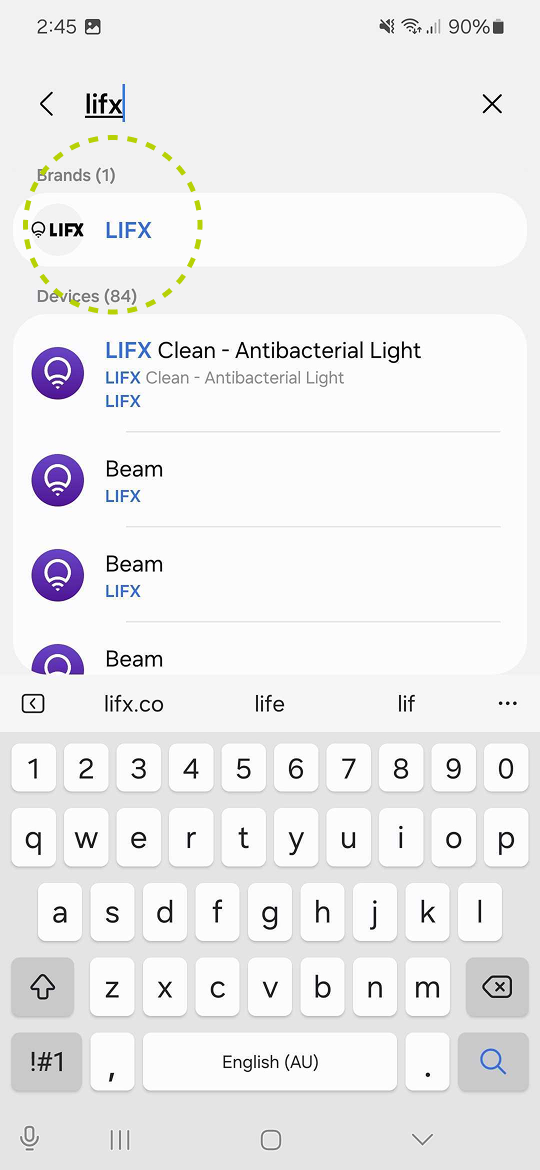
Type LIFX and tap the LIFX result under Brands.
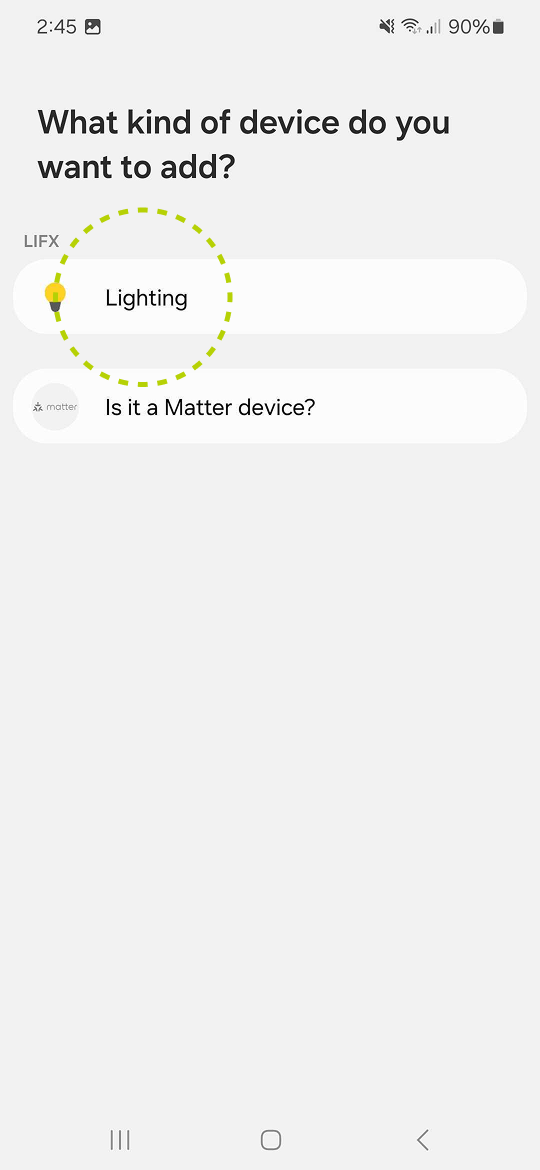
Select Lighting as the device type.
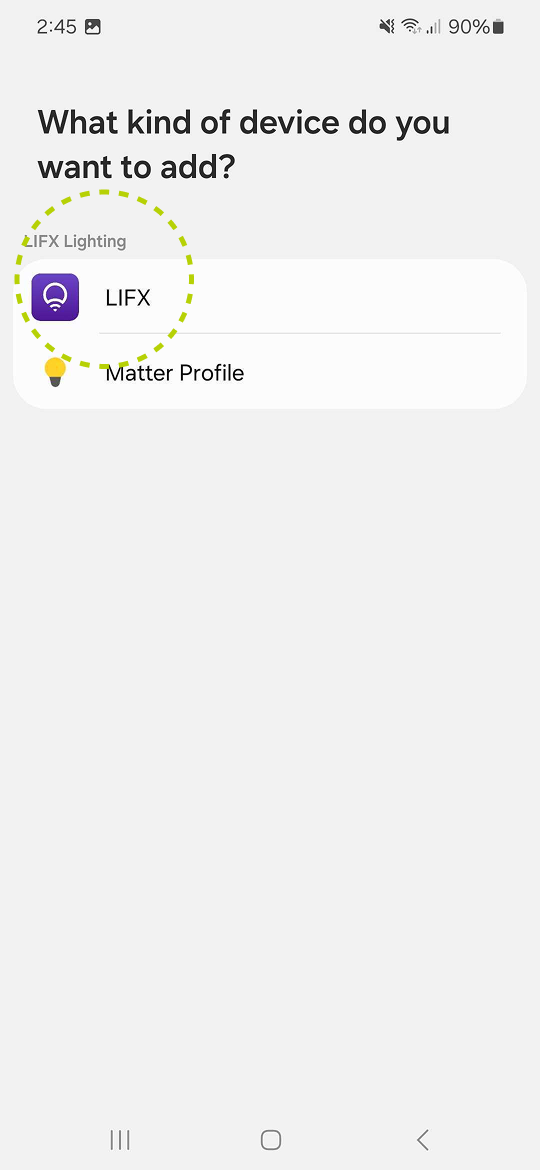
Select LIFX as the device type.
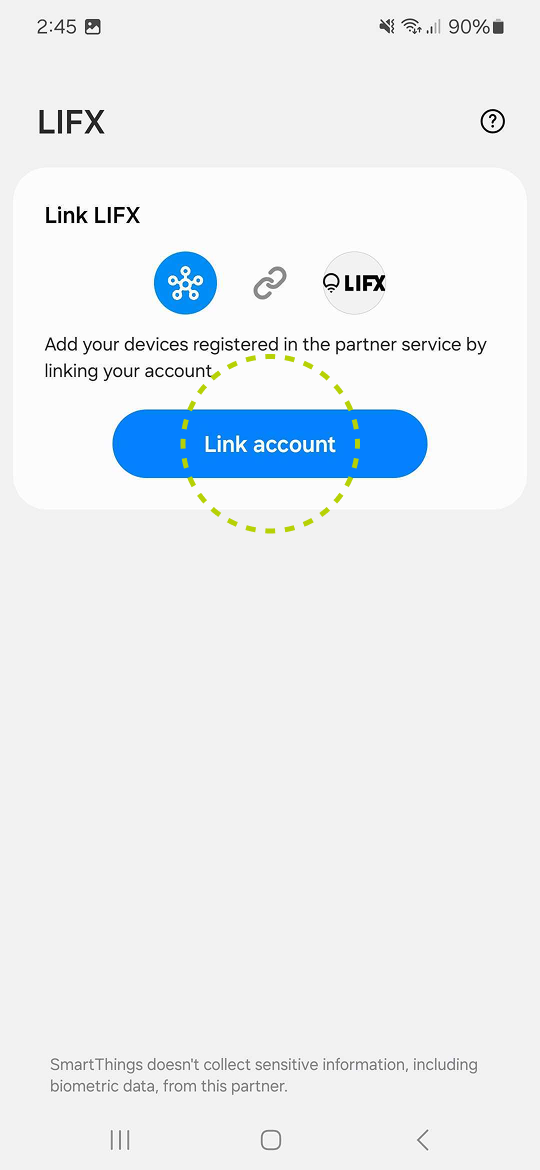
Tap Link account to connect your LIFX account with SmartThings.
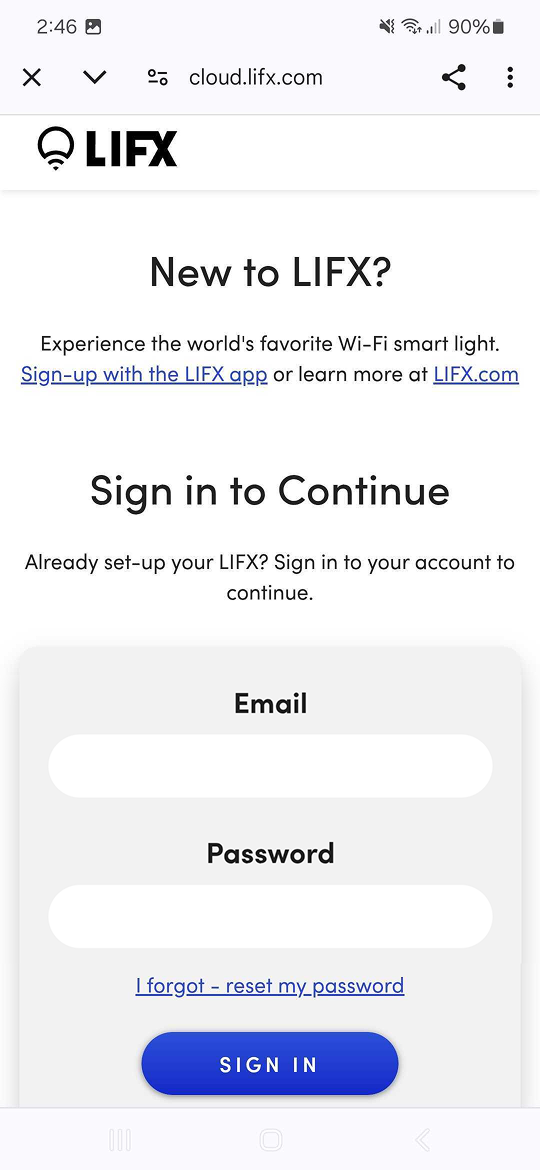
Use the same email and password you use for the LIFX app, then tap Sign in.
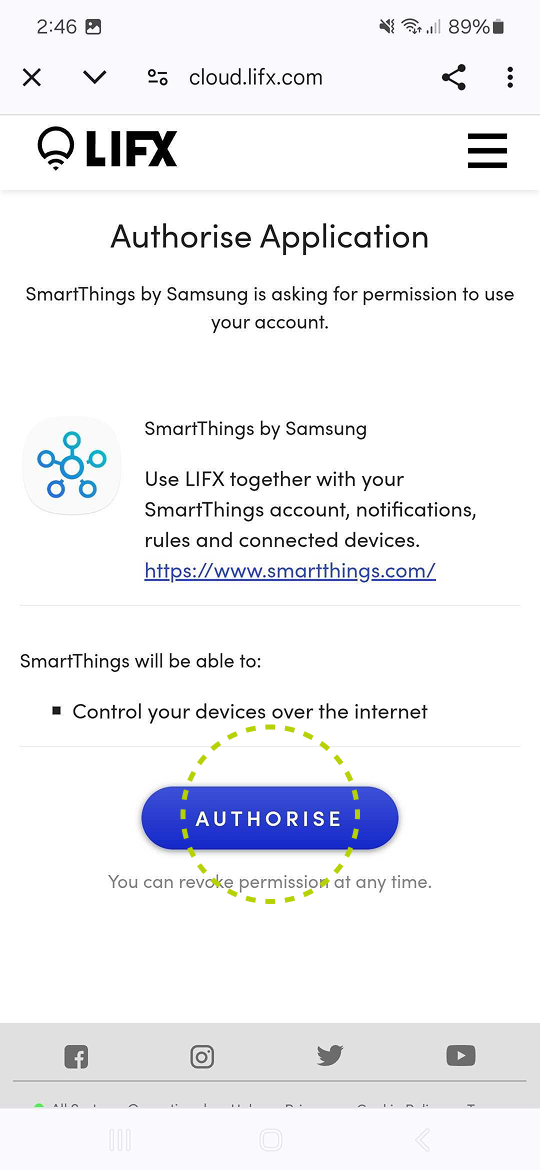
Give SmartThings permission to control your lights. Tap Authorise. You can revoke this any time.
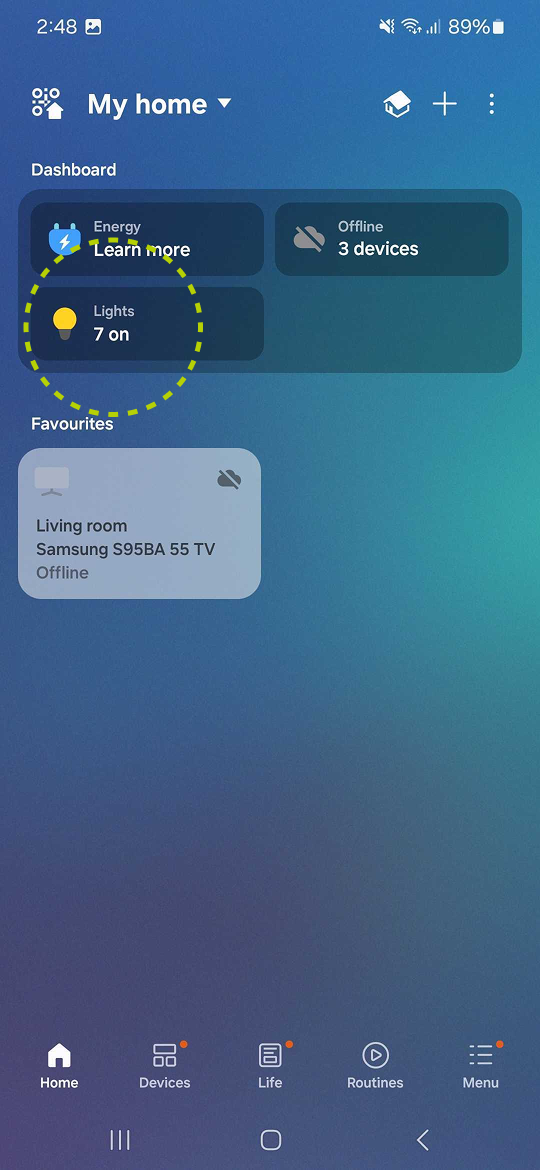
Your LIFX lights now show on the dashboard. Tap the Lights button to open them.
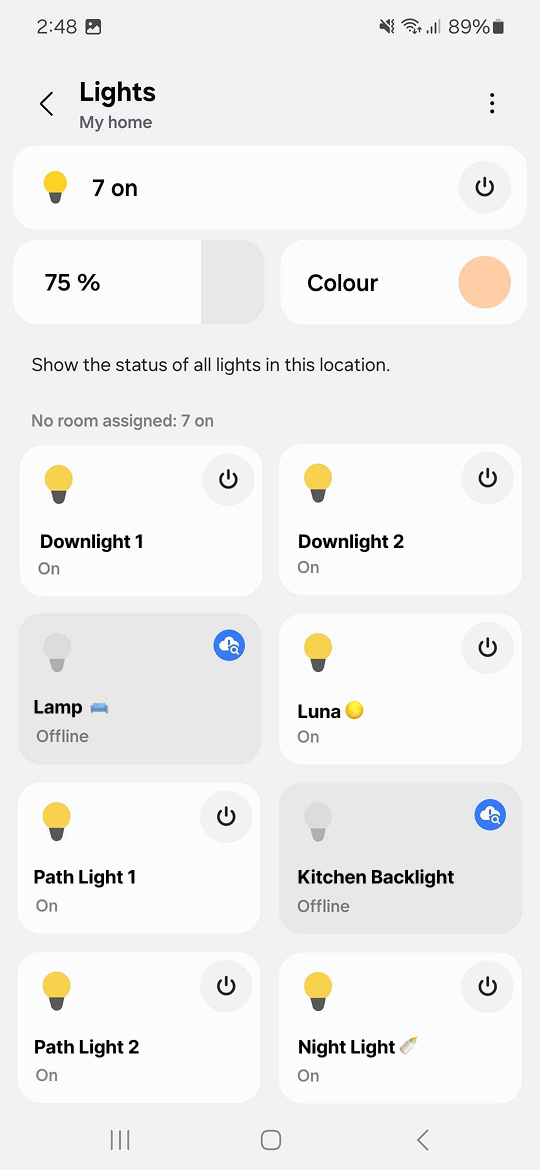
Control all your lights together, or tap an individual light for more granular control.
Follow these steps in the SmartThings app
What this means for you